UTM Parameters Not Showing in GA4? Fix It in 5 Minutes
UTM parameters in URL but not in GA4? Follow this diagnostic flowchart to identify and fix the issue in 5 minutes.
The Problem
You added UTM parameters to your campaign URLs. You launched. You opened GA4 to check performance and... nothing.
Your email campaign shows as Direct. Your social ads appear as Referral. The UTMs are in the URL, but GA4 acts like they don't exist.
Stop. Before you spend hours debugging, follow this 5-minute diagnostic process.
Quick Diagnostic: 3 Tests to Run First
Test 1: Check the GA4 Realtime Report
This confirms whether GA4 is tracking anything from your campaign.
- Go to Reports -> Realtime in GA4
- Click your campaign link from the actual channel (email, social, etc.)
- Look at the event stream
What you're checking:
- Does your session appear at all?
- What source/medium is shown?
- Is there any campaign data visible?
If you see NO session data -> GA4 isn't loading. Jump to Fix #1: GA4 Not Loading
If you see session data but wrong source/medium -> Continue to Test 2
Test 2: Inspect the Browser URL
After clicking your campaign link, look at the address bar.
Are the UTM parameters still there?
| What You See | What It Means | Next Step |
|---|---|---|
| OK UTMs are in the URL | Problem is with GA4 tracking | Continue to Test 3 |
| X UTMs disappeared | Redirect stripped them | Jump to Fix #2: Redirects |
| ! URL changed completely | Site redirect removed parameters | Jump to Fix #2: Redirects |
Test 3: Check Fragment Placement
If UTMs are in the URL, check their position.
Wrong (won't work):
https://example.com/page#section?utm_source=newsletter&utm_medium=email
Correct:
https://example.com/page?utm_source=newsletter&utm_medium=email#section
If UTMs are after the # symbol -> Jump to Fix #3: Fragment Position
If UTMs are before the # or there's no fragment -> Continue to the flowchart below
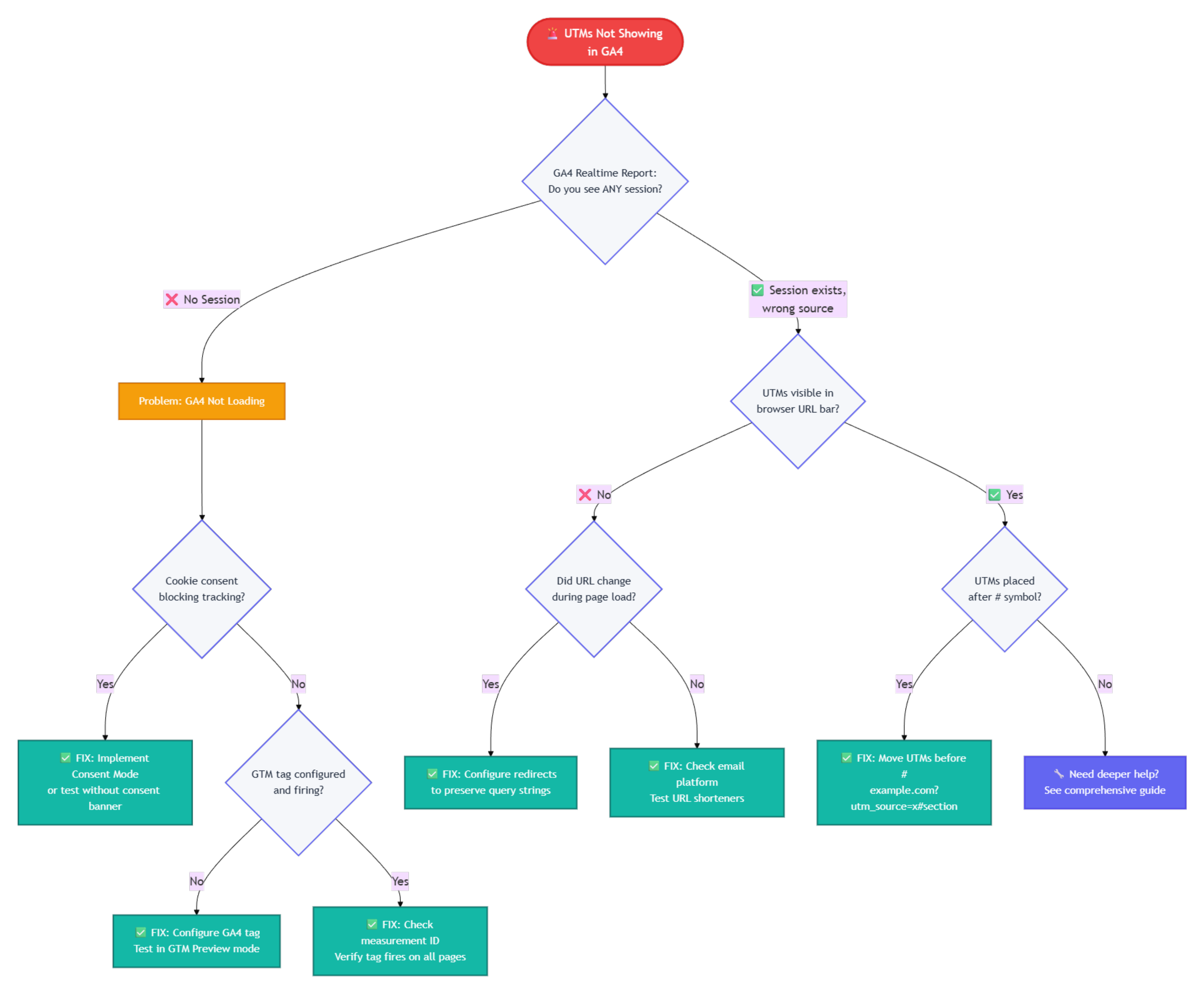
Troubleshooting Flowchart
Use this to pinpoint the exact issue:
(click to enlarge - right click to open in a new tab)
Fix #1: GA4 Not Loading
Symptom: No session appears in GA4 Realtime at all
Most Common Causes:
Cookie Consent Blocking
The problem: Users reject cookies, preventing GA4 from firing.
Quick test:
- Open an incognito window
- Click your campaign link
- Reject all cookies on the consent banner
- Check GA4 Realtime
If no session appears: Consent is blocking GA4
The fix:
- Implement Google's Consent Mode v2 to allow basic analytics without full consent
- Or: Delay consent banner until after first page view (check legal compliance first)
- Or: Test with consent accepted to confirm this is the issue
GTM Misconfiguration
The problem: GA4 tag isn't set up correctly in Google Tag Manager.
Quick test:
- Open Google Tag Manager
- Click Preview
- Enter your site URL with UTM parameters
- Click through and check if GA4 Configuration tag fired
Common mistakes:
- Tag not firing on all pages
- Missing or incorrect Measurement ID
- "Send page view" not enabled
- Using old UA-era configuration
The fix:
- Go to GTM -> Tags -> Your GA4 Configuration Tag
- Verify Measurement ID matches your GA4 property
- Set trigger to All Pages (or appropriate trigger)
- Enable Send a page view event when this configuration loads
- Save, publish, and test in Preview mode
Fix #2: Redirects Stripping UTMs
Symptom: UTMs disappear from the URL after clicking
The problem: Your site, URL shortener, or marketing platform strips UTM parameters during redirects.
Common scenarios:
- Bitly or other URL shorteners not preserving query strings
- WordPress redirect plugins dropping parameters
- Email platform click tracking stripping UTMs
- Multiple redirect hops losing parameters
Quick test:
- Paste your full UTM-tagged URL into a browser
- Hit Enter
- Watch the address bar during page load
- Check if UTMs survive to the final URL
If they disappear: You have a redirect issue
The fix:
For URL Shorteners:
- Test the shortened link before using in campaigns
- Verify query parameters are preserved
- Most modern shorteners (Bitly, TinyURL) support this by default
- If not, switch to a shortener that does
For WordPress Sites:
Check redirect plugins (Redirection, Yoast):
- Find redirect rule for your landing page
- Enable "Pass query parameters" option
- Test the redirect again
For Email Platforms:
- Test emails in multiple clients (Gmail, Outlook, Apple Mail)
- Watch for "Safe Links" or link protection features
- Consider using platform's native tracking alongside UTMs
- Monitor for redirect domains like
safelinks.protection.outlook.comin GA4
Fix #3: Fragment Position
Symptom: UTMs are in the URL but GA4 doesn't see them
The problem: UTM parameters placed after # are invisible to analytics.
Why this happens: Fragment identifiers (#section) don't get sent to servers. Browsers keep everything after # local.
Visual example:
X Wrong:
https://example.com/pricing#plans?utm_source=newsletter&utm_medium=email
OK Correct:
https://example.com/pricing?utm_source=newsletter&utm_medium=email#plans
The fix:
- Identify where the
#fragment is being added (your CMS, URL builder, marketing platform) - Restructure the URL to place UTMs in the query string (after
?, before#) - Test the corrected URL to verify UTMs appear in GA4
Quick validation: If you see # before ? in your URL, it's wrong.
Still Not Working? Advanced Issues
If none of the above fixes work, you might be dealing with:
- JavaScript redirect timing: Page redirects before GA4 loads
- App-to-web transition issues: Mobile apps stripping parameters
- Multiple GA4 tags: Conflicting configurations
- Cross-domain tracking: Parameters lost during domain handoff
These require more in-depth debugging. See our comprehensive guide to UTM troubleshooting for detailed solutions.
Prevention: Stop This From Happening Again
1. Validate Before Launch
Every campaign URL should be checked for:
- OK UTM parameters present
- OK Parameters before any
#fragment - OK Values are lowercase (prevents case-sensitivity issues)
- OK No spaces or special characters
- OK All three required parameters: source, medium, campaign
Use UTM Guard to automatically validate URL structure before launch.
2. Test the Full Journey
Don't just test in your browser. Test how users will actually experience it:
- Email clients: Gmail, Outlook, Apple Mail
- Social apps: Instagram, Facebook, LinkedIn in-app browsers
- Mobile devices: iOS Safari, Android Chrome
- Desktop browsers: Chrome, Firefox, Safari, Edge
Click the actual campaign link. Watch the URL. Check GA4 Realtime.
Catch issues before thousands of users experience them.
3. Monitor Immediately After Launch
Within 5 minutes of launching a campaign:
- Check GA4 Realtime report
- Look for your campaign name, source, and medium
- If missing -> stop the campaign and investigate
- Don't wait -> broken tracking wastes budget every hour
Set up a GA4 alert for sudden Direct traffic spikes (often indicates stripped UTMs).
Quick Reference: Diagnostic Checklist
Use this when troubleshooting:
-
Session appears in GA4 Realtime?
-
No -> Check consent settings and GTM configuration
-
Yes -> Continue
-
UTMs visible in browser URL bar?
-
No -> Test redirect chain and URL shorteners
-
Yes -> Continue
-
UTMs placed before
#fragment? -
No -> Restructure URL
-
Yes -> Continue
-
Page redirects immediately after load?
-
Yes -> Check JavaScript timing or server redirects
-
No -> See comprehensive guide
Real-World Fix: Email Campaign Example
Problem: Email newsletter clicks showing as Direct in GA4
Diagnosis:
- OK Checked Realtime -> session appeared
- OK Checked URL bar -> UTMs were present
- X Opened email in Outlook -> UTMs disappeared after click
Root cause: Outlook Safe Links stripping query parameters
Fix: Updated email platform settings to preserve parameters through click tracking
Result: Email campaigns now correctly attributed as source=newsletter, medium=email
Time to fix: 8 minutes
Next Steps
- Validate your campaign URLs before launch
- Read the complete guide for all 7 common issues
- Learn prevention best practices to avoid future issues
- Understand GA4 Unassigned traffic and how to fix it
TL;DR
3 Quick Checks:
- GA4 Realtime -> Session appears? (No = consent or GTM issue)
- Browser URL -> UTMs visible? (No = redirect issue)
- Fragment check -> UTMs before
#? (No = URL structure issue)
Most Common Fixes:
- Configure redirects to preserve query strings
- Move UTMs before the
#fragment - Fix GTM tag configuration
- Test with consent accepted
Prevention:
- Validate URLs before launch (use UTM Guard)
- Test in actual email clients and apps
- Monitor GA4 Realtime immediately after launch
Still broken? See the comprehensive troubleshooting guide.
FAQ
How quickly should UTMs appear in GA4?
UTM data should appear in the GA4 Realtime report within seconds. If you don't see it within 5 minutes, something is wrong.
What's the #1 reason UTMs don't show in GA4?
The most common cause is redirects stripping query parameters. Always test your full redirect chain before launching campaigns.
Can I fix UTM tracking without developer help?
Most UTM issues can be diagnosed and fixed without coding. The main exceptions are GTM configuration and JavaScript redirect timing.
Why do my UTMs work in testing but not in production?
This usually indicates an environment-specific issue like cookie consent blocking in production, email client link protection, or platform-specific redirects.
Related reading
The 7 Reasons UTM Parameters Don't Show in GA4 (Complete Guide)
Why UTM parameters don't show in GA4: all 7 causes, debugging techniques, platform fixes, and proven solutions for campaign tracking.
Understanding GA4 Default Channel Groups: The Complete Guide
How GA4 channel groups classify traffic, what rules determine classification, and fixes for common channel grouping issues.
How to Fix Unassigned Traffic in Google Analytics 4
GA4 Unassigned traffic means improper campaign classification. Learn causes, diagnostics, and proven fixes to clean up reports.