How to Fix Unassigned Traffic in Google Analytics 4
GA4 Unassigned traffic means improper campaign classification. Learn causes, diagnostics, and proven fixes to clean up reports.
What Is Unassigned Traffic in GA4
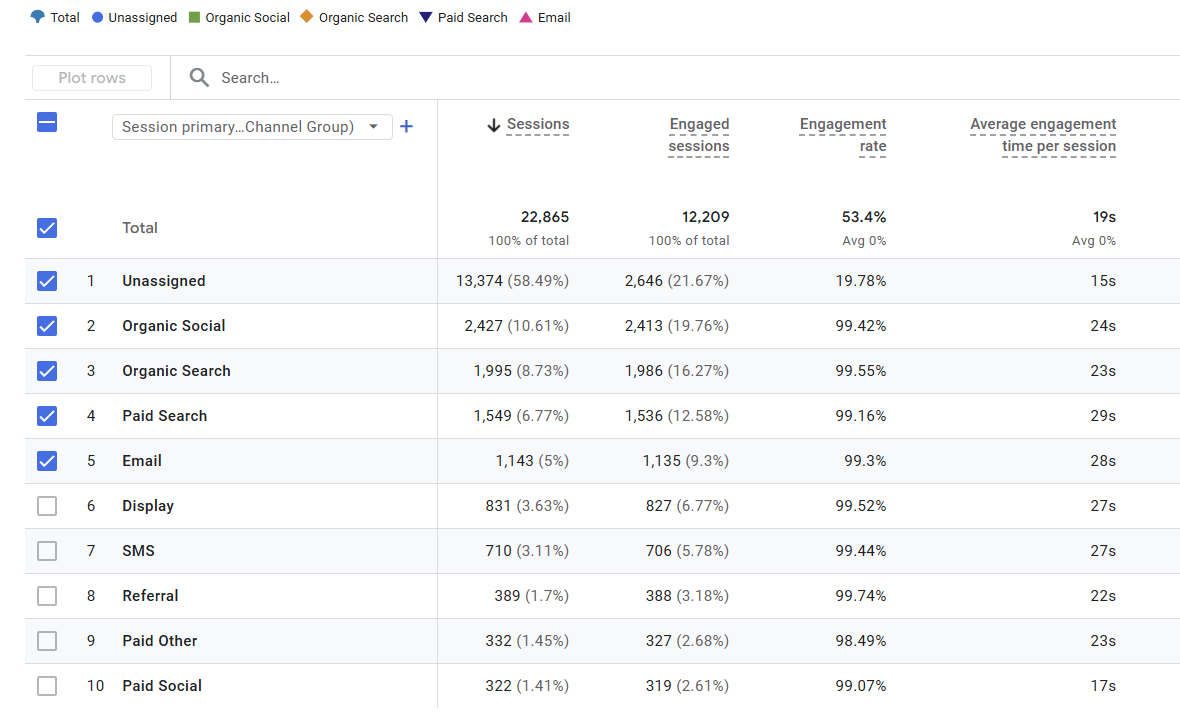
You've launched a campaign. The traffic is flowing. You open GA4 to check performance and there it is, sitting near the top of your Traffic Acquisition report: Unassigned.
Not Direct. Not Organic Social. Just... Unassigned.
If you're seeing this, you're not alone. And more importantly, you're right to be concerned.
Unassigned traffic in GA4 means your analytics can't confidently classify sessions into a default channel group. Unlike Universal Analytics, which would make educated guesses, GA4 is stricter. When the attribution signals are incomplete, inconsistent, or malformed, GA4 doesn't guess and flags the session as Unassigned.
The impact Traffic you can't trust. Campaigns that look broken. Reports that raise more questions than they answer.
The good news: Unassigned traffic is almost always preventable. Let's fix it.
Why GA4 Shows Unassigned Traffic
Unassigned traffic isn't "mystery traffic." It's usually the result of fixable tagging and implementation issues.
Here are the most common culprits:
1. Invalid or Inconsistent UTM Parameters
GA4 relies heavily on utm_source and utm_medium to classify sessions into channels like Paid Search, Email, or Social. When these values don't match GA4's expected patterns, the session gets marked Unassigned.
Common mistakes include:
- Non-standard medium values:
paidsearch,ppc_ads,email-blast(instead ofcpc,email) - Inconsistent casing:
Emailvsemail,CPCvscpc - Extra spaces or special characters:
email(trailing space),social%20media - Internal shorthand:
crm,partner-link,retargeting
If GA4 can't match your UTM values to its built-in channel rules, the session goes to Unassigned by default.
2. Missing Required UTM Parameters
Campaign links often go live with incomplete UTM tagging. You might have:
- Only
utm_campaignpresent (no source or medium) - Missing
utm_mediumentirely - Auto-tagging disabled or accidentally overridden
Without both utm_source and utm_medium, GA4 can't safely classify the session. The result: another tally in the Unassigned bucket.
3. Source/Medium Combinations That Don't Match GA4 Rules
GA4's default channel groups rely on specific source/medium pairings. Even if your intent is obvious to a human, GA4 won't infer it.
Examples:
| What You Used | What GA4 Expects | Result |
|---|---|---|
utm_source=facebook + utm_medium=cpc |
utm_medium=paid_social or paidsocial |
X Maps to Paid Search (wrong) |
utm_source=newsletter + utm_medium=link |
utm_medium=email |
X Unassigned |
utm_source=linkedin + utm_medium=social |
utm_medium=social + organic source |
OK Maps to Organic Social |
The logic is strict, and mismatches lead to misclassification or Unassigned sessions.
4. Legacy or Custom Naming Conventions
Many teams carry forward Universal Analytics naming conventions or internal taxonomies that GA4 doesn't recognize.
Examples:
utm_medium=display_banner(should bedisplay)utm_medium=social-paid(should bepaid_socialorpaidsocial)utm_source=crm+utm_medium=email_marketing(non-standard medium won't map to the default Email channel)
These values may work internally, but GA4 won't classify them properly.
How to Diagnose Unassigned Traffic in GA4
Before fixing anything, you need to identify the patterns causing Unassigned sessions.
Step 1: Break Down Unassigned by Source/Medium
Navigate to: Reports > Acquisition > Traffic acquisition
- Add a filter:
Default channel group = Unassigned - Add Session source/medium as a secondary dimension
You'll usually see the problem immediately:
- Repeated typos (
emialinstead ofemail) - Inconsistent casing (
Email,EMAIL,email) - Unrecognized medium values (
partner,crm,social_paid)
Step 2: Check Landing Pages
Unassigned traffic often clusters around specific landing pages:
- Email click-through landing pages
- Paid campaign URLs
- Partner referral pages
This tells you where the broken links are being used.
To check: add Landing page as a secondary dimension while filtering to Unassigned traffic.
Step 3: Inspect Redirects and URL Shorteners
Redirects can strip or alter UTM parameters if not configured correctly. This is especially common with:
- URL shorteners (bit.ly, ow.ly)
- QR code redirect services
- Internal redirect rules or CDNs
Always verify that UTM parameters survive the entire redirect chain from click to final destination.
How to Fix GA4 Unassigned Traffic (Step-by-Step)
1. Standardize Your UTM Taxonomy
Create and enforce a documented UTM naming convention:
- Use lowercase only:
email, notEmailorEMAIL - Stick to GA4-recognized mediums:
email,cpc,paid_social,display,organic_social,social,referral - Avoid spaces and special characters: Use hyphens or underscores if needed
- Be specific but consistent: Don't invent new mediums for every campaign
Pro tip: Consistency matters more than creativity. Pick standard values and stick to them across all campaigns.
2. Validate UTMs Before Launch
Most Unassigned traffic is preventable with basic pre-launch checks.
Before publishing any campaign link:
- Confirm
utm_sourceandutm_mediumare present - Check spelling and casing
- Verify the source/medium combination maps to your intended channel
- Test the full URL (including any redirects)
Catching errors upstream prevents weeks of retroactive cleanup.
This is where UTM Guard comes in. Instead of manually checking every URL, UTM Guard validates your links against GA4's channel rules and flags issues before they impact your data.
3. Fix Active Campaign Links at the Source
For campaigns already running with bad UTMs:
- Update links directly in your email platform, ad accounts, or CMS
- Don't rely on GA4 filters or custom channel groups to "fix" the problem in reporting. This masks the issue without solving it
- Avoid retroactive corrections that hide poor data quality
If you can't update the source immediately, at minimum document the issue and plan for better QA on the next launch.
4. Use Custom Channel Groups Sparingly
Custom channel groups can help classify edge cases, but they shouldn't be a crutch.
If your reporting only makes sense because of extensive custom rules, your base UTM data quality is the real problem. Fix the tagging first, customize second.
Real Example: Email Campaign Gone Wrong
Scenario: You launch a promotional email campaign. A week later, you check GA4 and see 2,000+ sessions marked as Unassigned.
Investigation:
- Filter to Unassigned traffic
- Add source/medium dimension
- You see:
newsletter / link
The problem: link is not a recognized medium. GA4 expects email.
The fix: Update your email platform's UTM template to use utm_medium=email. Future emails will classify correctly as Email channel.
Prevention: If you'd validated the URL with UTM Guard before sending, it would have flagged utm_medium=link as non-standard and suggested email instead.
Common Questions About Unassigned Traffic
Will Unassigned traffic fix itself over timeX
No. Unassigned sessions are already recorded. The only way forward is to fix your UTM tagging for future traffic.
Should I create a custom channel group for Unassigned trafficX
Only if you've exhausted all other options. Custom channel groups can help classify known edge cases, but they don't improve your underlying data quality.
Can I use GA4 filters to reclassify Unassigned trafficX
Filters can help with reporting, but they don't change the raw event data. It's better to fix the source.
How much Unassigned traffic is "normal"X
Ideally, close to zero. A small amount (under 1 to 2 percent) might be acceptable for edge cases, but anything higher signals a systemic UTM quality issue.
How UTM Guard Prevents Unassigned Traffic
Unassigned traffic is a symptom, not the root problem. The root problem is poor UTM quality control.
UTM Guard analyzes campaign URLs before they go live and flags:
- Invalid or non-standard UTM values
- Source/medium combinations that won't map to GA4 channels correctly
- Formatting issues (casing, spaces, special characters)
- Missing required parameters
Instead of troubleshooting Unassigned traffic after launch, you catch and fix issues during campaign setup before they ever hit your GA4 property.
Final Thoughts
GA4 Unassigned traffic isn't random. It's feedback.
When Unassigned sessions show up in your reports, GA4 is telling you:
"I don't trust the data you're sending me."
The fix isn't complicated:
- Standardize your UTM naming
- Validate links before launch
- Update broken links at the source
- Use custom channel groups only as a last resort
Get those fundamentals right, and Unassigned traffic drops dramatically without hacks, filters, or reporting workarounds.
Next Steps
- Validate your campaign URLs with UTM Guard before your next launch
- Read our guide on GA4 best practices to build a solid tagging foundation
- Learn about GA4 channel groups and how they classify traffic
Stop troubleshooting Unassigned traffic after the fact. Catch UTM issues before they break your GA4 reports.
FAQ
What does Unassigned mean in GA4?
Unassigned means GA4 could not match the session to any default channel grouping rules based on utm_source and utm_medium.
Is Unassigned traffic always a UTM issue?
Most of the time it is caused by missing or non-standard UTMs, but redirects and auto-tagging conflicts can also contribute.
How can I prevent Unassigned traffic?
Standardize your UTM taxonomy, validate URLs before launch, and ensure source and medium values match GA4 defaults.
Related reading
Understanding GA4 Default Channel Groups: The Complete Guide
How GA4 channel groups classify traffic, what rules determine classification, and fixes for common channel grouping issues.
Case-Sensitive UTM Parameters: Why Your GA4 Data Looks Fragmented
GA4 treats UTM parameters as case-sensitive, causing duplicate reports and skewed data. Learn why it happens and proven fixes.
UTM Parameter Best Practices for 2026: A Complete Guide
Master UTM parameters with 2026 best practices. Learn naming conventions, avoid mistakes, and build a taxonomy for clean GA4 data.